How to Use Campus to Corporation: Every Tool Explained
How to use Campus to Corporation step by step: build your profile and a parser-safe resume, tailor it per job, add a cover letter, rehearse in Interview Prep.
By Uzair Ahmed, Entrepreneur · · 8 min read
Landing a graduate role used to be about volume — blast out 200 applications, tweak the same resume, and hope the math works out. That stopped working the moment companies wired applicant-tracking software, keyword filters, and AI screeners between you and a human recruiter. Today the students who win aren't the ones who apply the most; they're the ones who arrive prepared — a resume that survives the parser, answers rehearsed out loud, and a coursework record that proves they can actually do the work. CampusToCorporation is built for exactly that shift. This guide walks you through the platform end to end, so you stop losing to filters you didn't know existed and start showing up as the candidate who's already done the reps.
1. Getting Started: Your Command Center
After you sign in, you land on your dashboard — the hub that ties every tool together. It's split into two worlds: the Job Hub (everything that gets you hired) and the University Hub (everything that keeps your coursework and study life organized). Your first job isn't to start applying. It's to complete your profile, because half the platform's AI features personalize their output based on your university, field of study, and target roles.
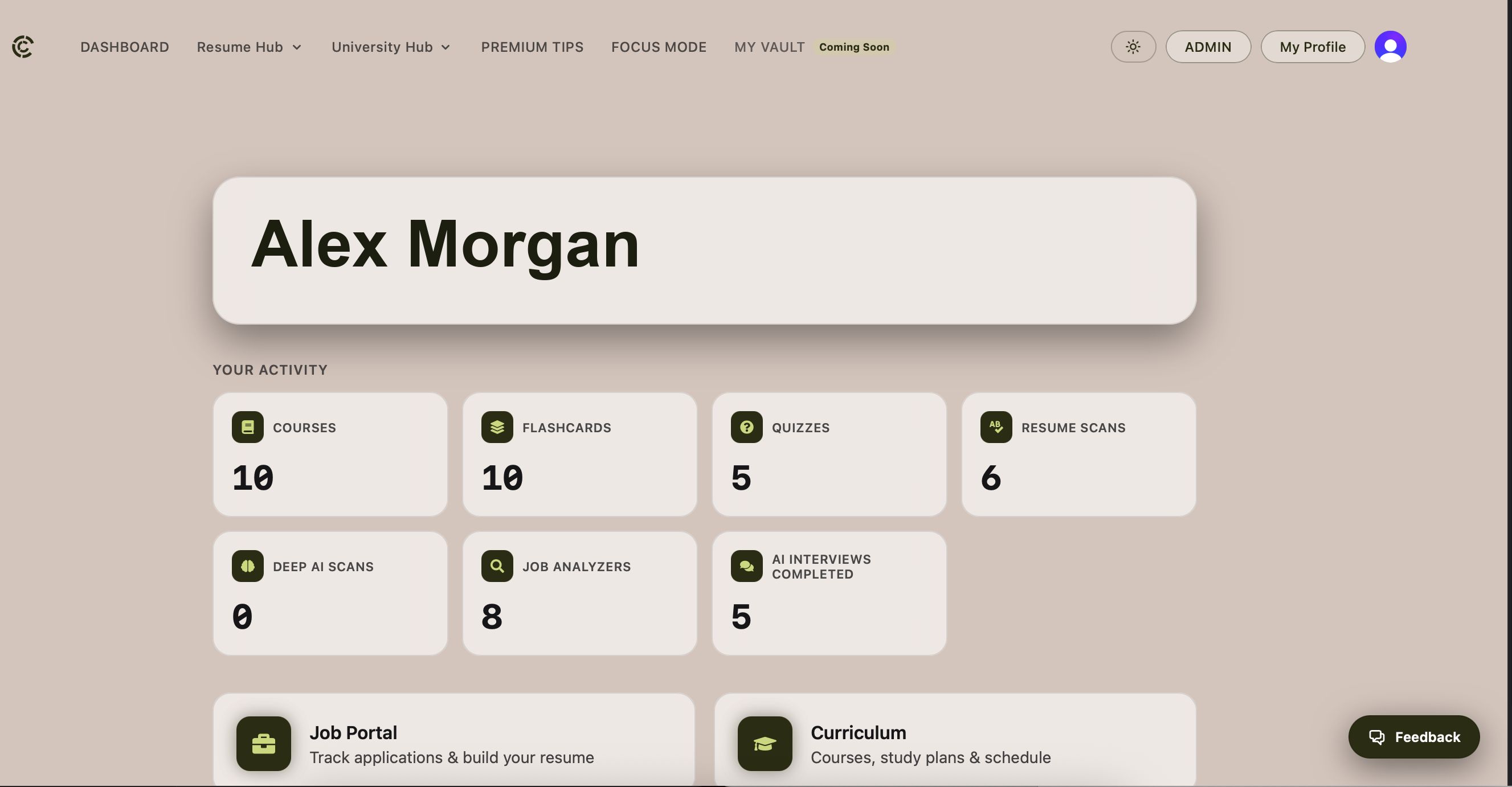
Figure 1: The main dashboard. Note the top navigation split between Job Hub and University Hub, the activity counters (resumes, cover letters, interviews completed) down the left, and the profile-completion prompt in the header. The floating dock at the bottom is your fastest route between tools.
The dashboard is not a to-do list you check off once. It's a scoreboard. Every counter that goes up is proof you're more prepared than the version of you that applied last week.
- Complete your profile first. Add your university (start typing — it auto-completes), city, and field of study. This feeds the AI resume, cover letter, and interview tools.
- Pick your track. If you're actively job-hunting, live in the Job Hub. If you're mid-semester, the University Hub keeps your grades and notes from slipping.
- Bookmark the dock. The bottom floating dock jumps you between the Resume Hub, Cover Letters, Interview Prep, and your notes without hunting through menus.
2. The Job Hub: Beating the Filter Before the Human
Most applications never reach a person. They're scored by software that hunts for keywords, parseable formatting, and matched experience. The Job Hub exists to get you past that gate. It's organized around three tools that work in sequence: build a clean resume, tailor it to the job, then generate a cover letter that reflects the same story.
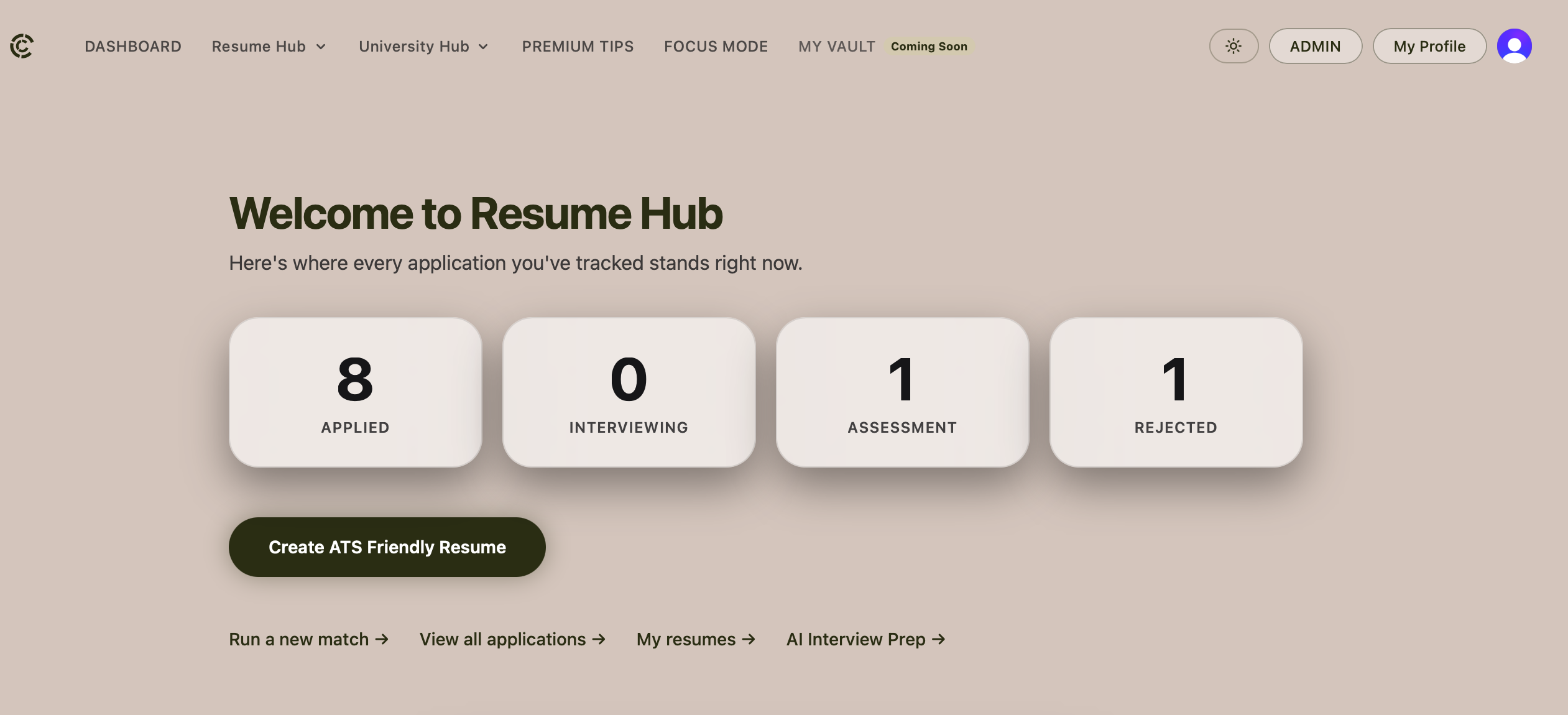
Figure 2: The Job Hub entry screen. Each card — ATS Resume Control Panel, Create Cover Letter, Resume Analyzer, and My Vault — opens a dedicated workspace. My Vault (right) is where every version you generate is saved so you never lose a tailored draft.
| Tool | What it does | How to use it |
|---|---|---|
| ATS Resume Control Panel | Builds a resume in a format applicant-tracking software can actually read, and lets you tune sections, keywords, and layout. | Start here before applying anywhere. Fill each section, then paste a target job description to align your keywords. |
| Resume Analyzer | Uploads your existing resume and scores it against a specific role, flagging missing keywords and weak phrasing. | Upload, paste the job posting, and act on the gaps it surfaces before you hit submit. |
| Create Cover Letter | Generates a tailored cover letter from your resume and the job description in seconds. | Generate, then edit for voice — never send the raw draft untouched. |
| My Vault | Stores every resume and cover letter version you create. | Name versions by company so you can reuse and adapt for similar roles. |
2a. Building an ATS-Safe Resume
The Control Panel walks you section by section — contact, summary, experience, education, skills. The key move is the job-matching step: paste the description of the role you're targeting and the tool highlights which keywords the posting expects versus what your resume actually contains.
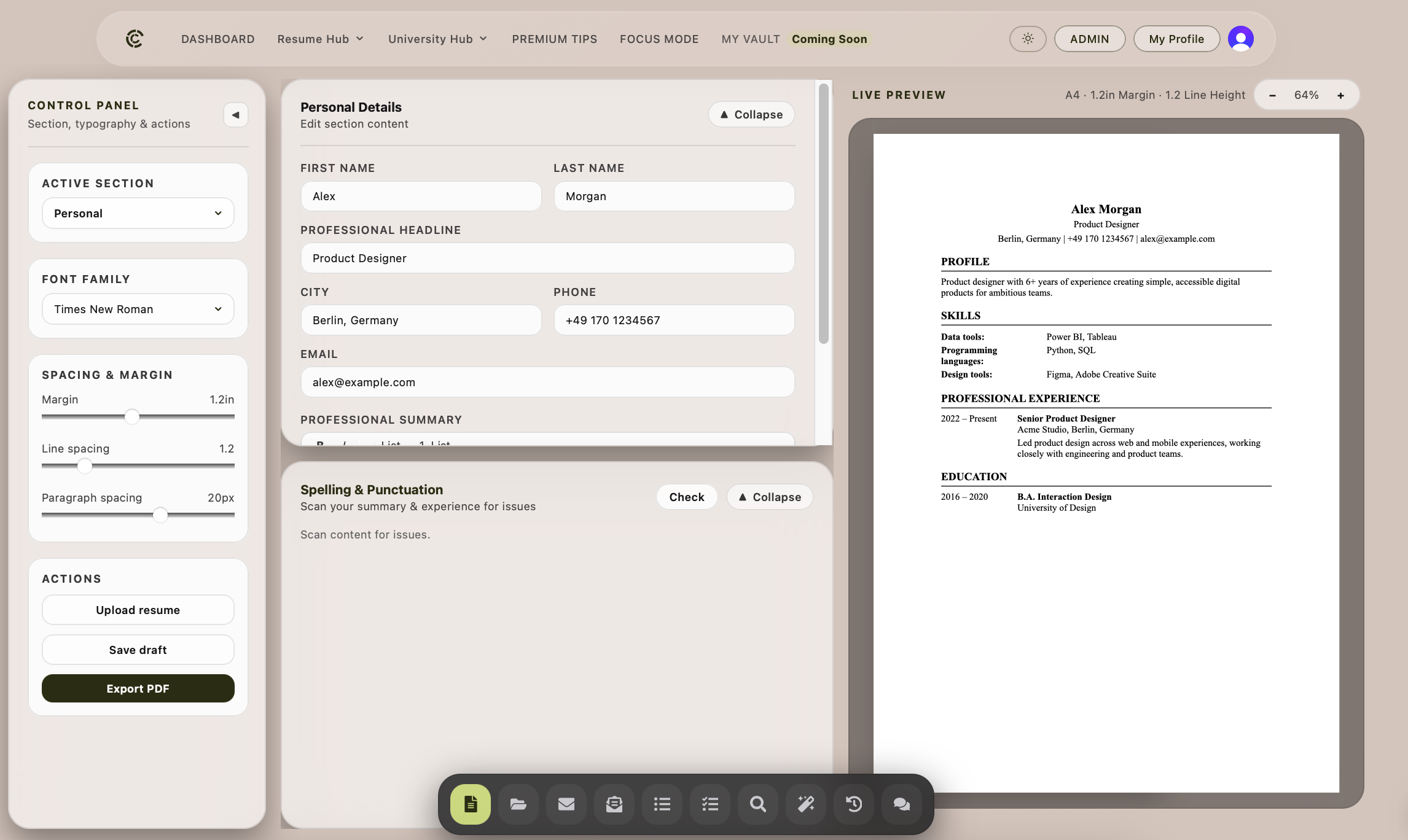
Figure 3: The ATS Resume Control Panel. Section editors sit on the left; a live, parser-safe preview updates on the right. The keyword-match indicator (top right) shows how well your resume aligns with the pasted job description — aim to close every red gap it flags.
- Fill every section honestly. Empty sections and fabricated experience both hurt you — parsers penalize gaps, humans catch lies.
- Paste the exact job description. The matcher only works against a real posting, not a job title.
- Close the keyword gaps. Where a required skill is missing but true of you, add it. Never keyword-stuff skills you don't have.
- Export clean. Download the parser-safe version — no tables, no columns, no graphics that break extraction.
3. AI Interview Prep: Reps Before the Real Thing
Getting the interview is half the battle. Losing it because you'd never said your answers out loud is the avoidable half. Interview Prep runs mock interviews in two modes — typed text or live voice — powered by an AI that adapts its follow-ups to your answers, just like a real interviewer.
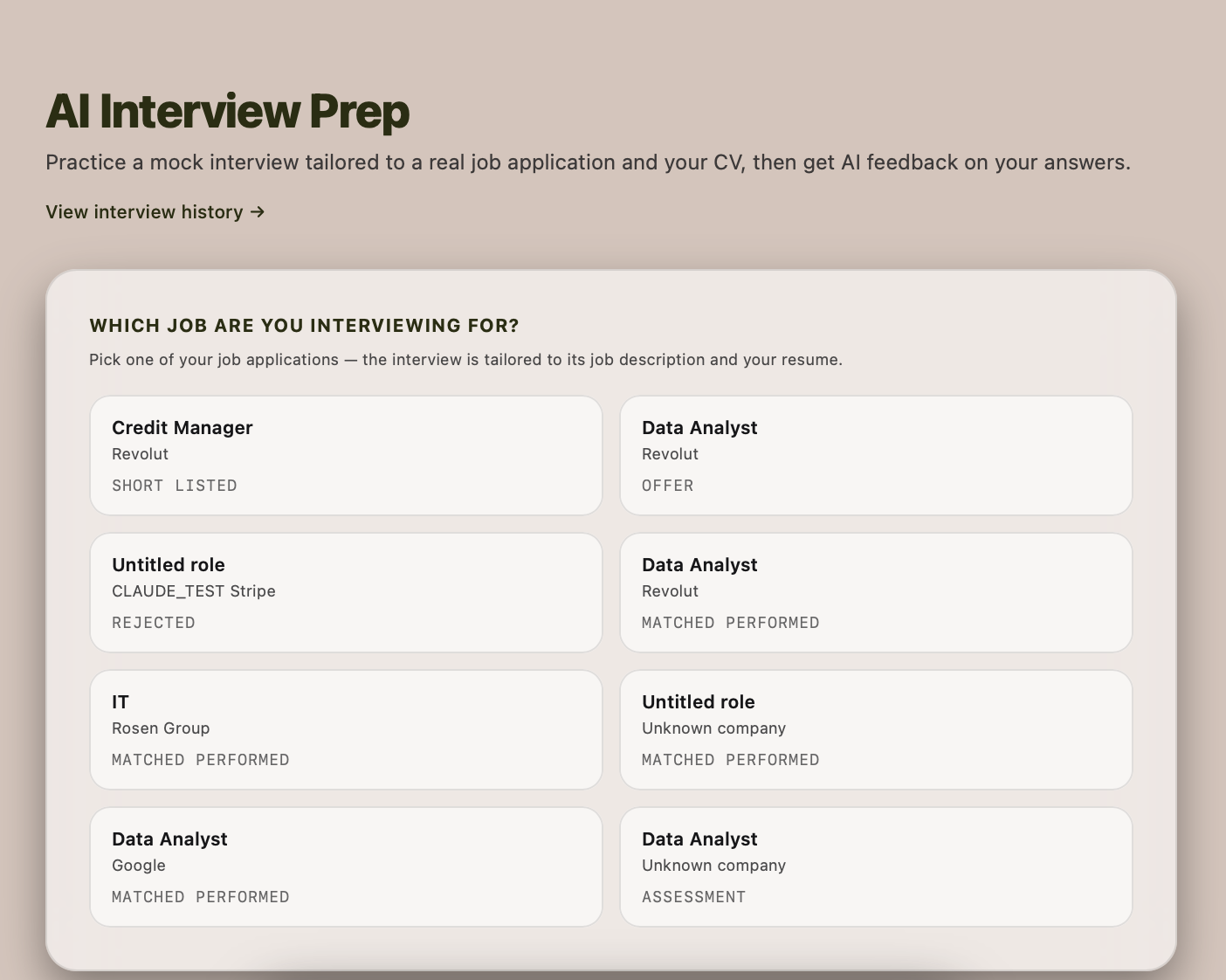
Figure 4: The Interview Prep gateway. Choose Text Mode to type answers or Voice Mode for a spoken, real-time conversation. Your session history sits below so you can revisit transcripts and track how your answers improve over time.
You don't rise to the occasion in an interview. You fall to the level of your preparation. The point of a mock isn't a perfect run — it's to make your mistakes here, where they're free.
| Mode | Best for | What to expect |
|---|---|---|
| Text Mode | Structuring answers, practicing on the go, reviewing a written transcript. | Type your response; the AI reads it, scores your reasoning, and asks a natural follow-up. |
| Voice Mode | Rehearsing delivery, pacing, and thinking on your feet under pressure. | A live spoken conversation — you talk, it responds in real time. The closest thing to the real room. |
- Use "Done" and "Pause" deliberately. Signal when you've finished an answer so the AI takes its turn cleanly instead of talking over you.
- Review the transcript, not just the vibe. After each session, read back where your answers rambled or dodged the question.
- Run voice mode at least once before a real interview. Typing hides the pauses and filler words that a live interviewer will notice.
4. The University Hub: Where Preparation Actually Starts
The strongest job applications are backed by a coursework record you can speak to with confidence. The University Hub keeps that foundation from crumbling mid-semester. It bundles your course tracking, notes, reports, a visual study workspace, and your curriculum in one place.
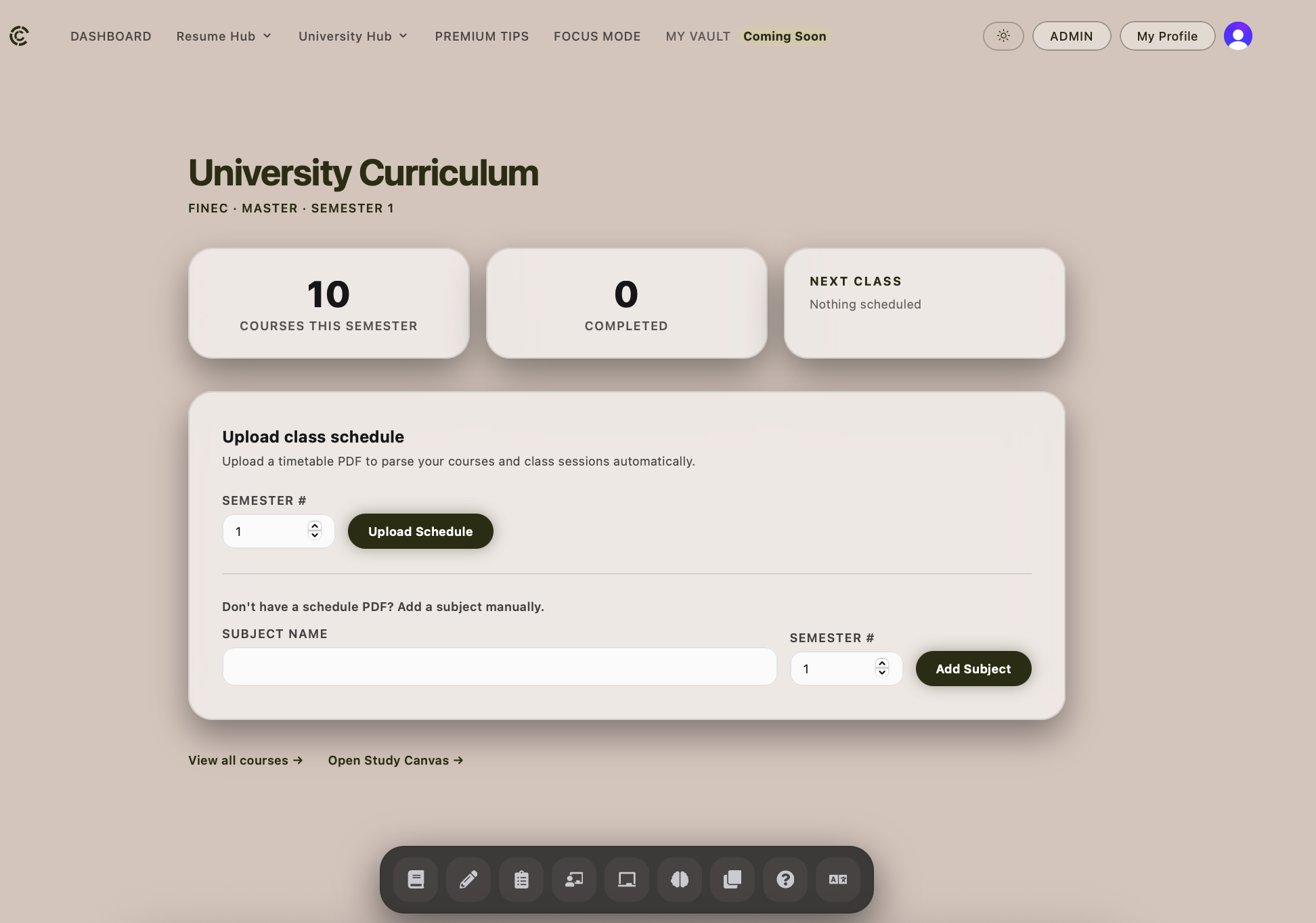
Figure 5: The University Hub. Tiles for Course Status (track progress and grades), Notebook (rich notes), Reports (long-form writing), Study Canvas (a visual board for PDFs and notes), and Curriculum (your subjects). The Course Status tracker up top is the anchor everything else hangs off.
| Feature | What it does | How to use it |
|---|---|---|
| Course Status | Tracks each course's progress and status across the term. | Update as you go so nothing quietly slips behind. |
| Notebook | A rich-text editor for lecture and study notes, organized per subject. | Take notes in-app so they're searchable and linked to the right course. |
| Reports | A distraction-free editor for essays and long-form assignments. | Draft here, then export when it's ready to submit. |
| Study Canvas | A pannable, zoomable board where you drop PDFs and notes side by side. | Drag your readings and notes onto one canvas to study visually. |
| Curriculum | Holds your list of subjects, including manually added ones. | Set it up first — the other tools organize around your subjects. |
5. Focus Mode: Cutting the Noise
Preparation dies by a thousand notifications. Focus Mode strips the interface down to a single distraction-free workspace so a study block or an application sprint actually gets your full attention.
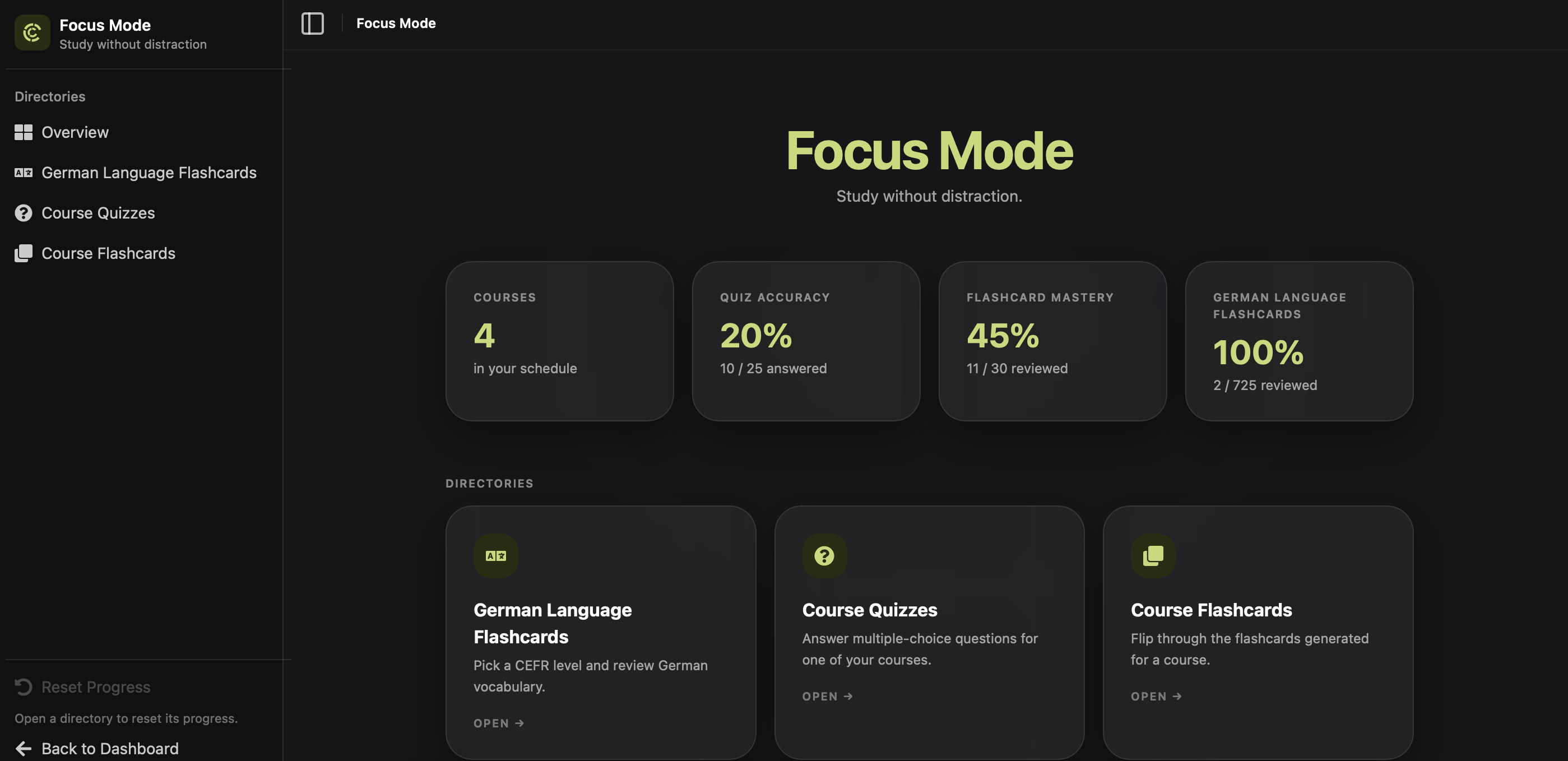
Figure 6: Focus Mode. The sidebar collapses to a minimal rail and the workspace centers on one task. Use the scoped reset control to clear a session and start fresh without wiping your saved work.
- Batch similar work. Do all your resume tailoring in one Focus block, all your interview reps in another — context-switching is the tax.
- One task per session. Focus Mode is designed for a single active item, not your whole backlog.
- Reset between sessions. Clear the session when you switch tasks so the workspace matches what you're actually doing.
6. Premium Tips and Guides: The Playbook
The tools do the work; the Guides and Premium Tips teach you how to use them well. Guides cover the fundamentals — writing bullet points that survive a recruiter's six-second scan, answering behavioral questions, reading a job description like a hiring manager. Premium Tips go deeper into the tactics that actually move offers.
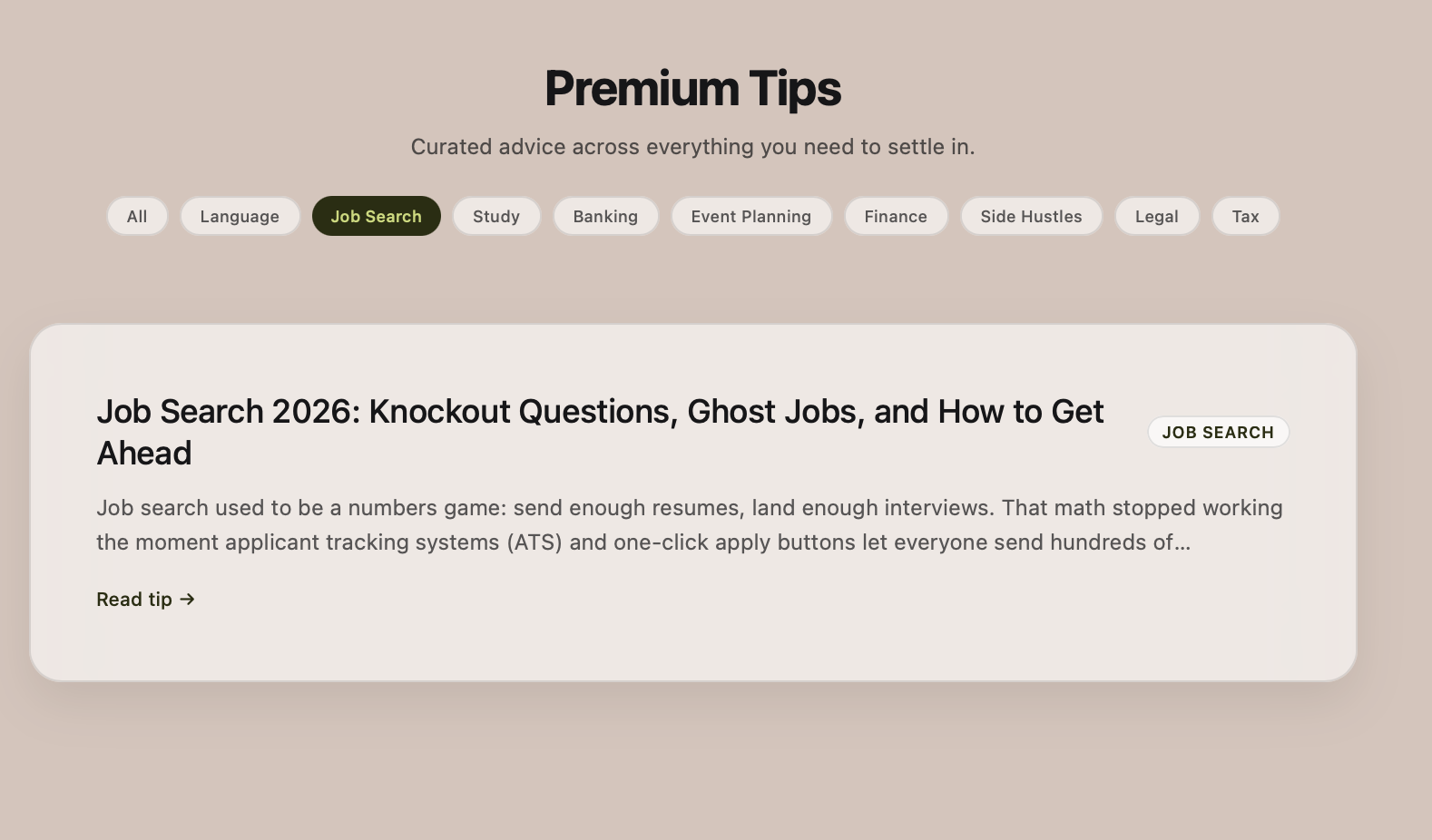
Figure 7: The Guides library and Premium Tips. Browse article cards by topic; Premium Tips (badged) unlock the more advanced, tactical playbooks. Read the relevant guide before using a tool for the first time — it changes what you get out of it.
- Read before you build. Skim the resume guide before your first ATS build; skim the interview guide before your first mock.
- Red flag — skipping the strategy. Generating a cover letter without understanding what makes one land just gets you a faster mediocre draft.
- Revisit as you progress. The tips that felt abstract before your first interview will make sense after it.
7. A Suggested End-to-End Workflow
Tools in isolation don't get you hired — the sequence does. Here's the path that gets the most out of the platform, from cold start to offer.
- Set up your profile and Curriculum. This personalizes every AI feature and organizes your study life.
- Build your base resume in the ATS Control Panel — clean, complete, parser-safe.
- Tailor per application. Paste each job description, close the keyword gaps, and save the version to My Vault by company.
- Run the Resume Analyzer on the tailored version as a final check before submitting.
- Generate and edit a cover letter so it tells the same story as your resume in your own voice.
- Rehearse in Interview Prep — text mode to structure answers, voice mode to practice delivery — before every real interview.
- Protect your coursework in the University Hub so your record backs up everything you claim.
The Bottom Line
CampusToCorporation isn't a shortcut around doing the work — it's a system for doing the right work in the right order: a resume that clears the software gate, applications tailored to each role instead of blasted at all of them, answers rehearsed out loud before they count, and a coursework record solid enough to stand behind. Set up your profile, build your base once, tailor deliberately, rehearse relentlessly, and you stop competing on volume and start competing as the candidate who showed up already prepared.